
Faculty Settings
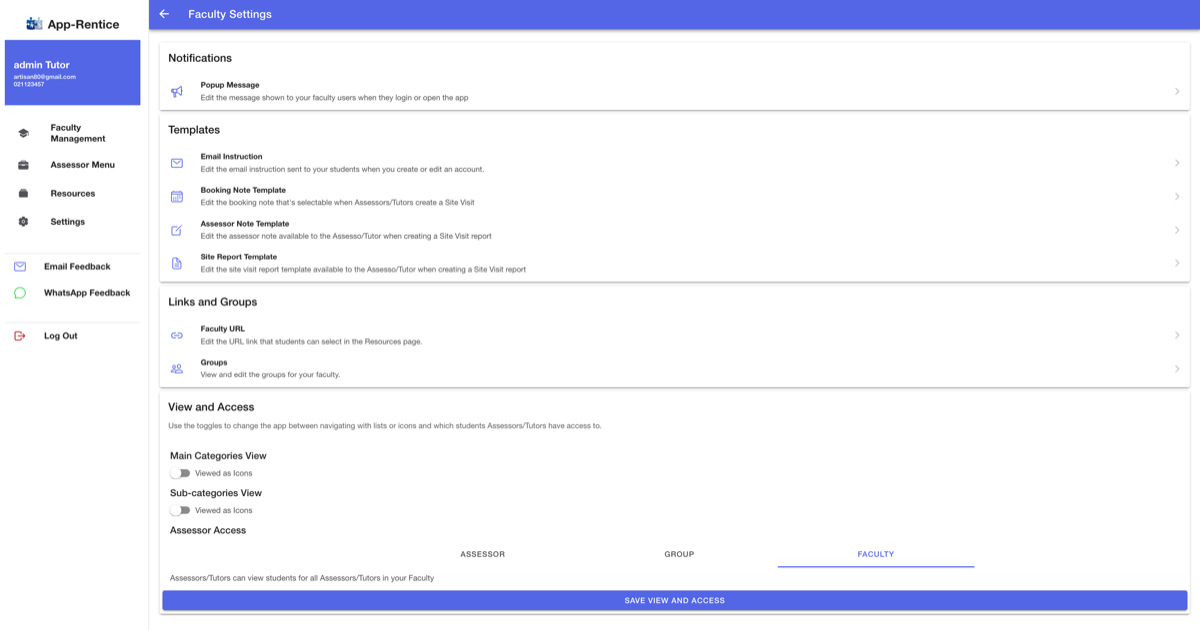
Select Faculty Settings from the Faculty Management page
- Select a list item in Notifications, Templates, and Links and Groups to open the corresponding page
- View and Access options can be changed and saved on this page
Popup Message
App-Rentice allows you to display a popup message when the user logs in or opens the app
The message will display once for the user per device/browser and will reset when you create a new message
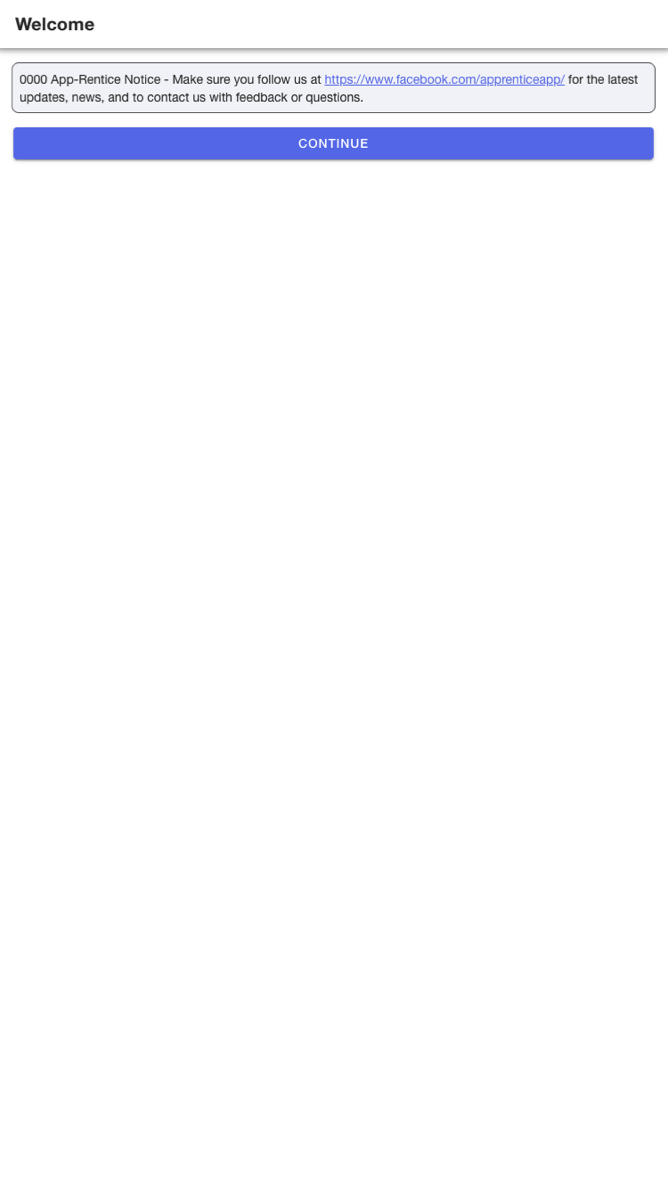
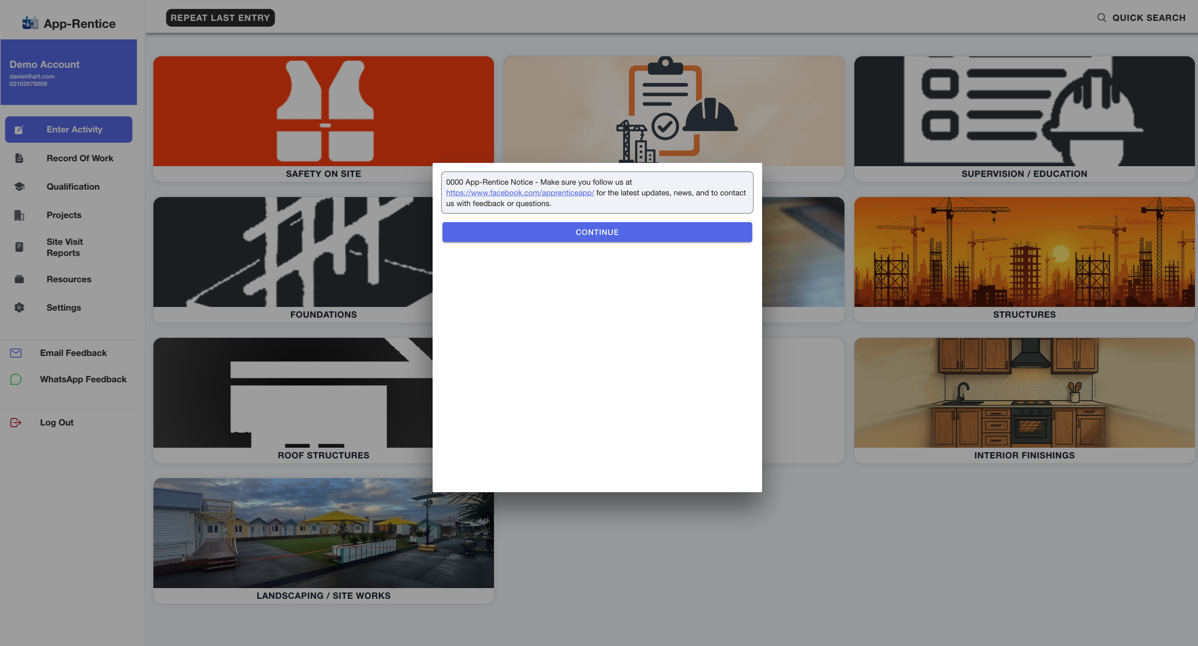
App-Rentice can also post Popup Messages and will be used for app system notifications, these will be displayed before the faculty Popup up.
Popup Message Page
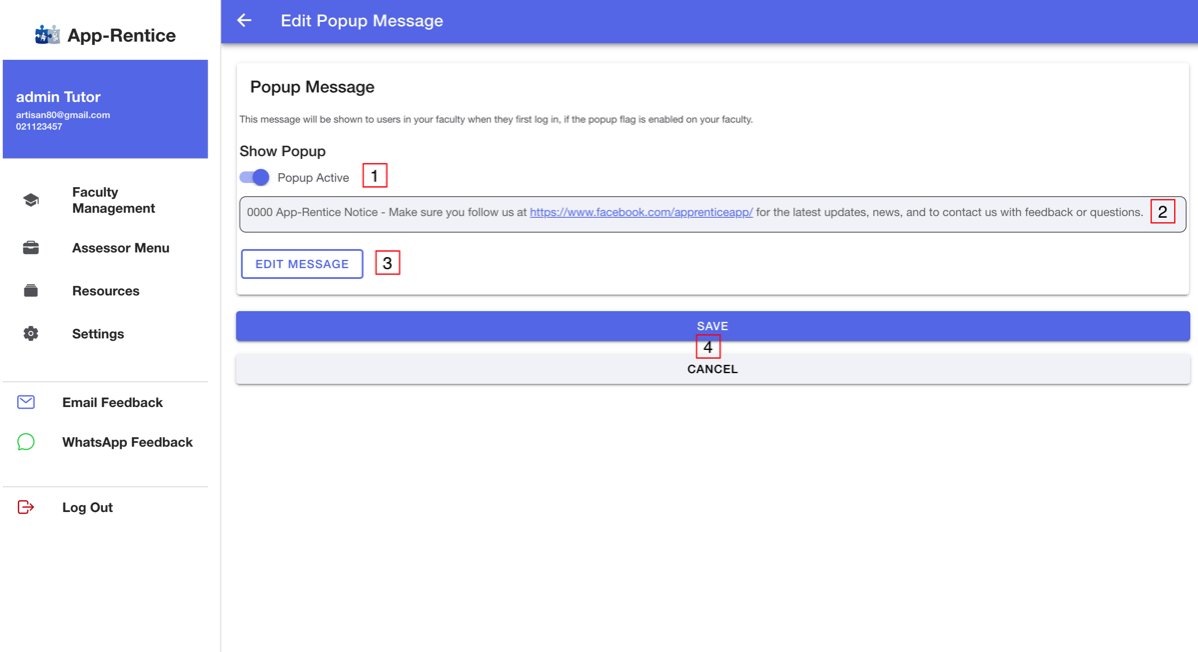
- Toggle to show or hide the Popup Message
- Preview of the message content
- Edit Message
- Save / Cancel
Edit Popup Message
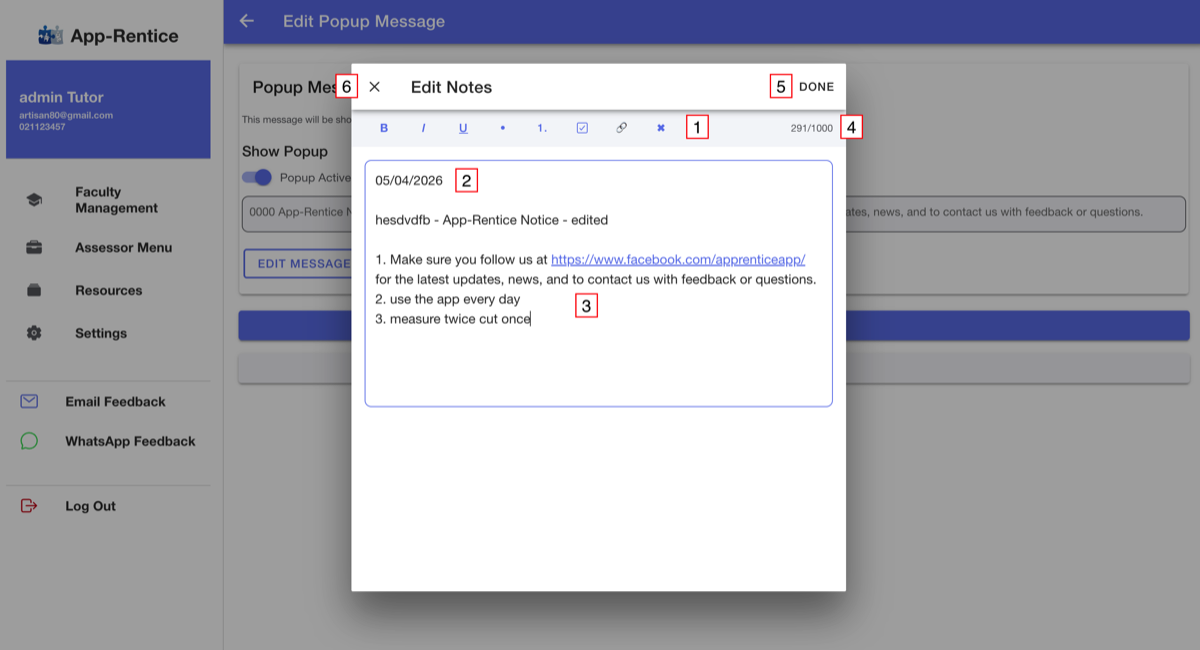
- Text Rich options, select one to insert where your cursor is
- The system will automatically add the date, this can be edited/deleted if needed
- Body of the message, edit as required
- There is a 1000 word limit
- Select Done to save the layout (this won't update the app yet)
- Select X to cancel
Select Save on the Edit Popup Message page to update the app.
Templates
App-Rentice allows you to create Text Rich Templates to be used by Assessors/Tutors in various parts of the app.
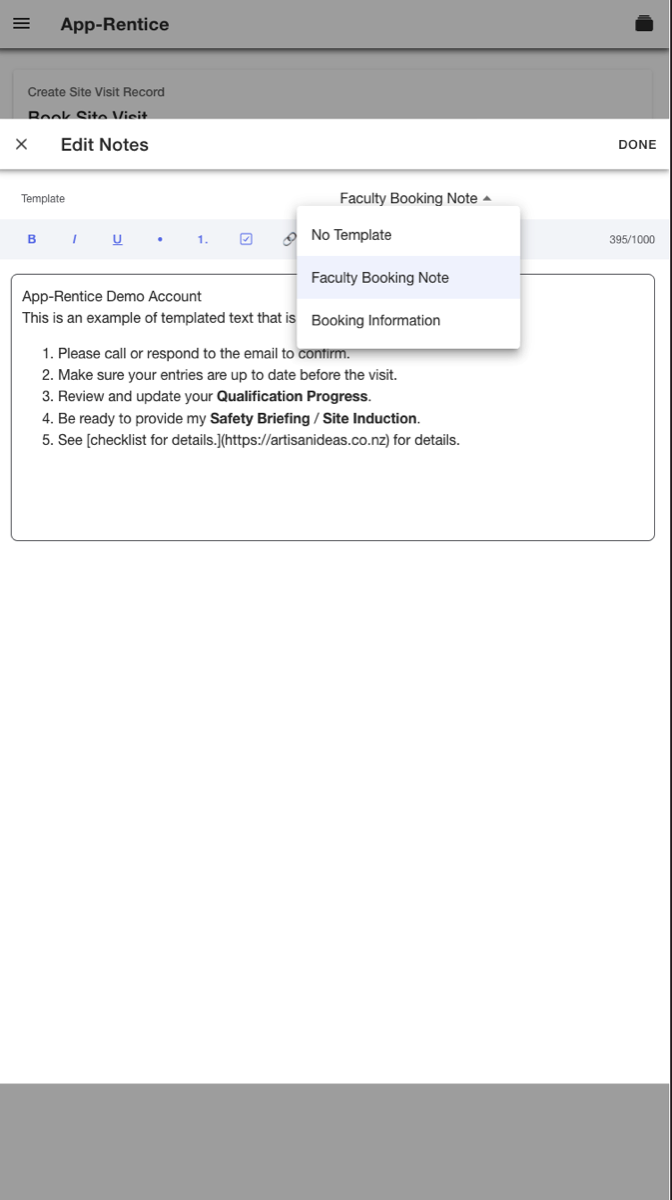
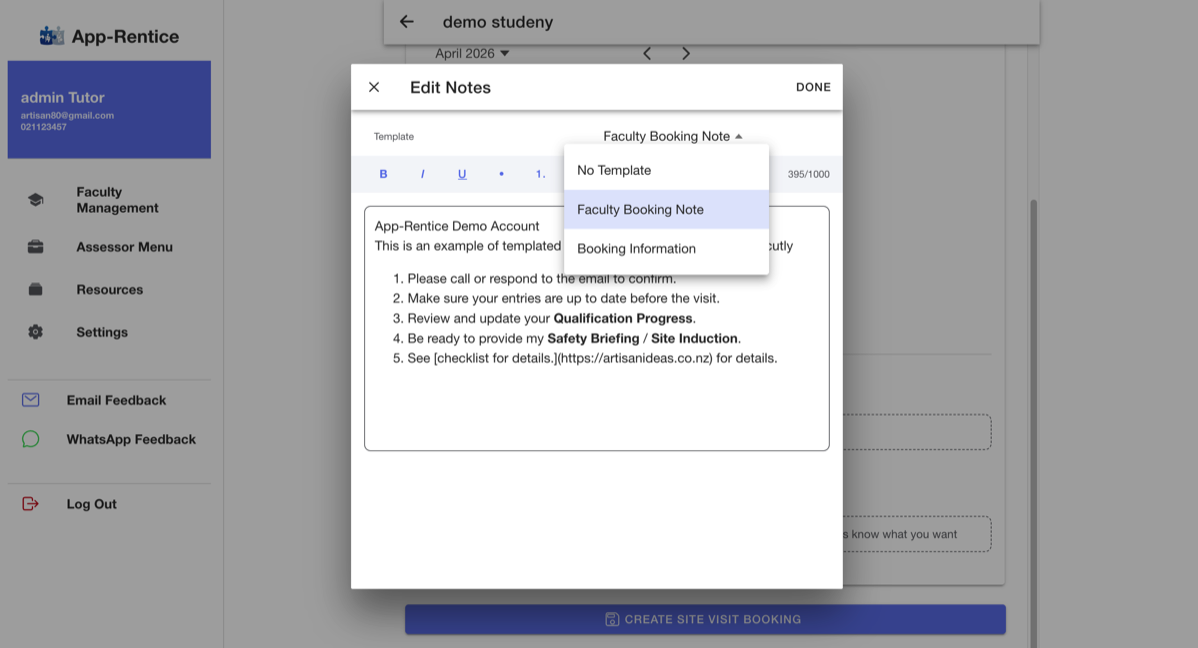
Templates insert the text into the text box and are completely editable
Available Templates
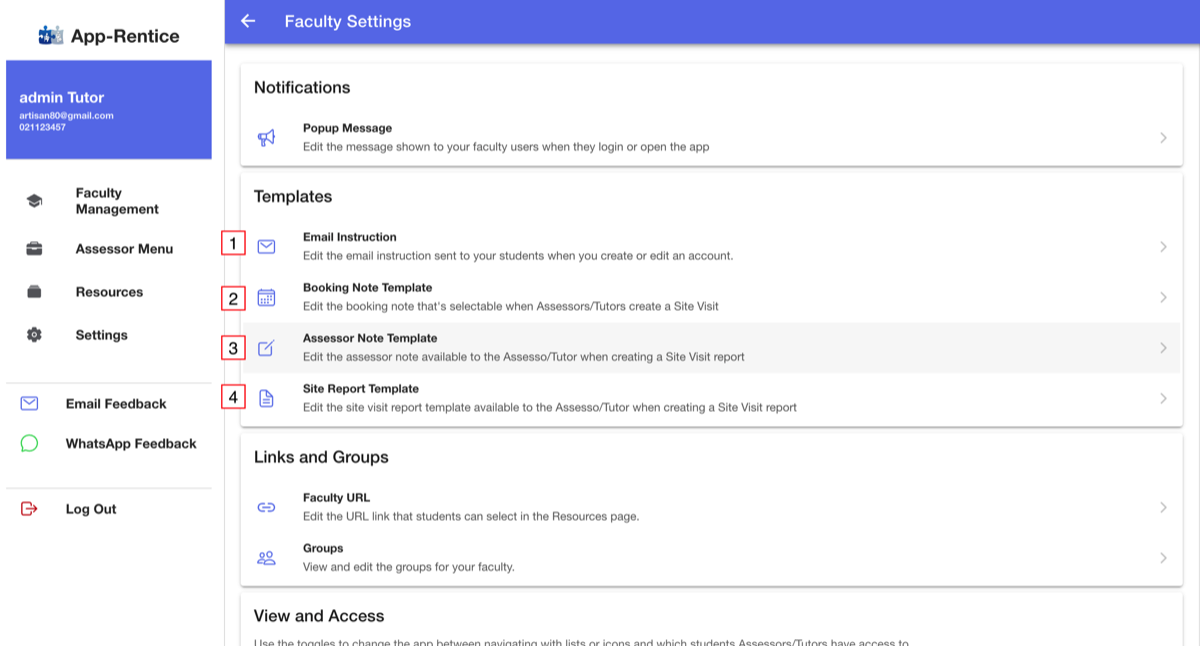
- Email Instruction - Add your own instructions or notes to the email sent to the user when you create or edit an account
- Booking Note Template - Create text that the Assessor/Tutor can select and edit when booking a site visit
- Assessor Note Template - Create text that the Assessor/Tutor can select and edit when writing their Site Visit Report
- Site Report Template - Provide text and checklist items for Assessors/Tutors to use when completing their Site Visit Report
Edit Email Instruction
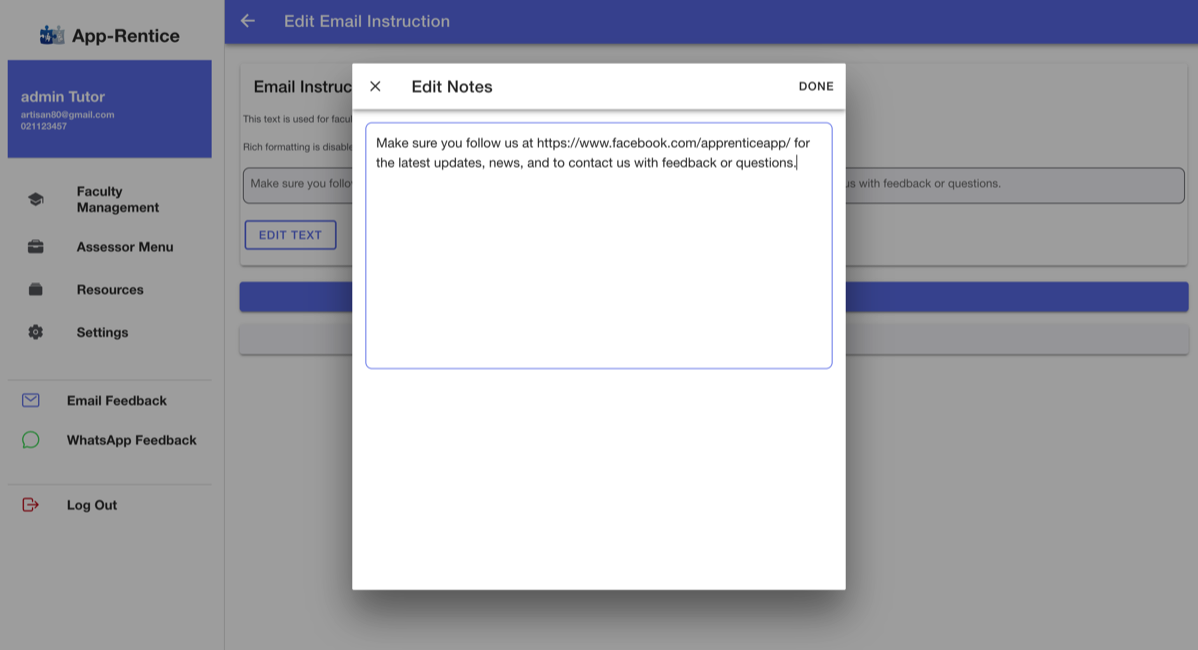
- Text Rich options are disabled as emails will only accept plain text
- There is a 1000 word limit
- Leave blank if you don't want to include additional instructions/notes
- Select Done to save the layout (this won't update the app yet)
- Select X to cancel
Select Save on the Edit Email Instruction page to update the app.
Edit Booking Note and Assessor Note Template
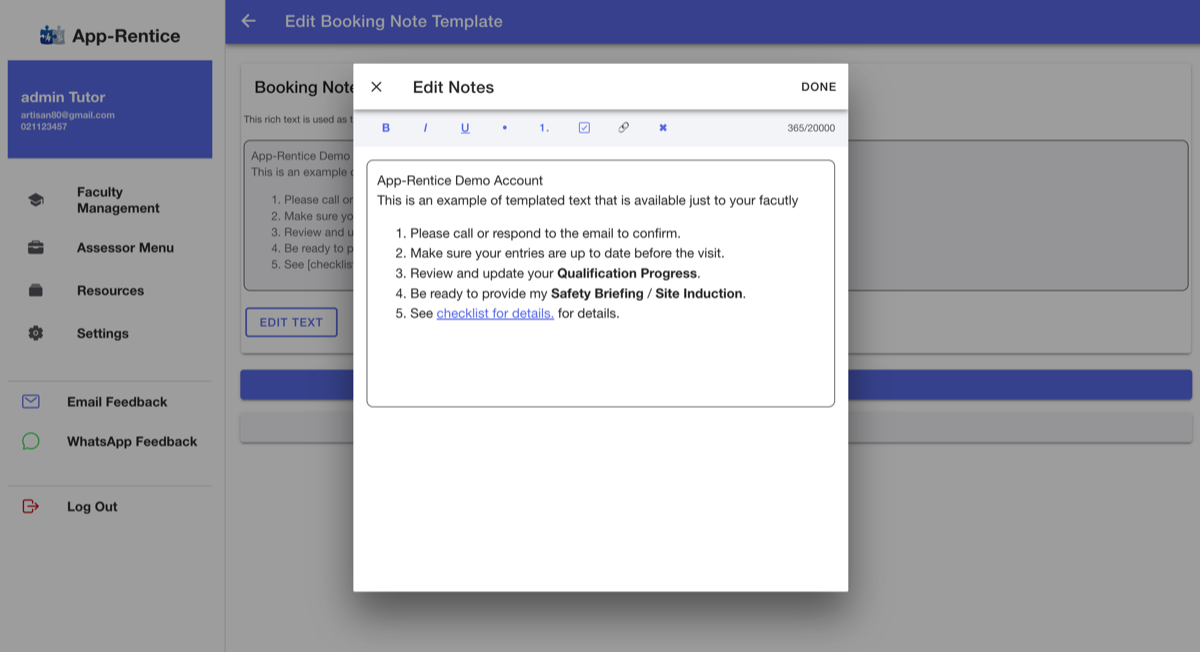
- Text Rich options, select one to insert where your cursor is
- Body of the message, edit as required
- There is a 1000 word limit
- Select Done to save the layout (this won't update the app yet)
- Select X to cancel
Select Save on the Edit Popup Message page to update the app.
Edit Site Report Template
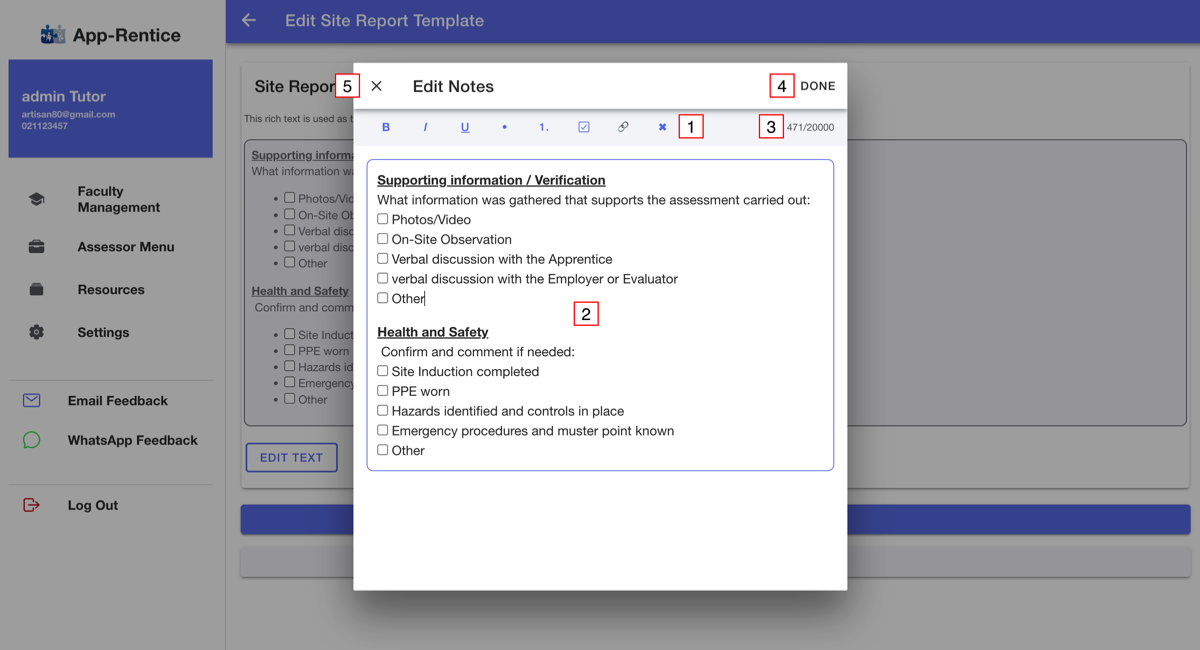
- Text Rich and basic HTML options, select one to insert where your cursor is - more HTML options to be added
- Body of the message, edit as required
- There is a 1000 word limit
- Select Done to save the layout (this won't update the app yet)
- Select X to cancel
Select Save on the Edit Popup Message page to update the app.
Links and Groups
Provide a link to a webpage/site of your choosing and group your users
App-Rentice provides resource links which are assigned to each sub-category (editable in the menu content section) but also a single URL that is displayed at the top of the Resources Page.
Create and edit groups so students can be filtered by groups, having Assessors/Tutors in groups also allows for sharing access to limited member (see View ad Access)
Links and Groups sub-menu
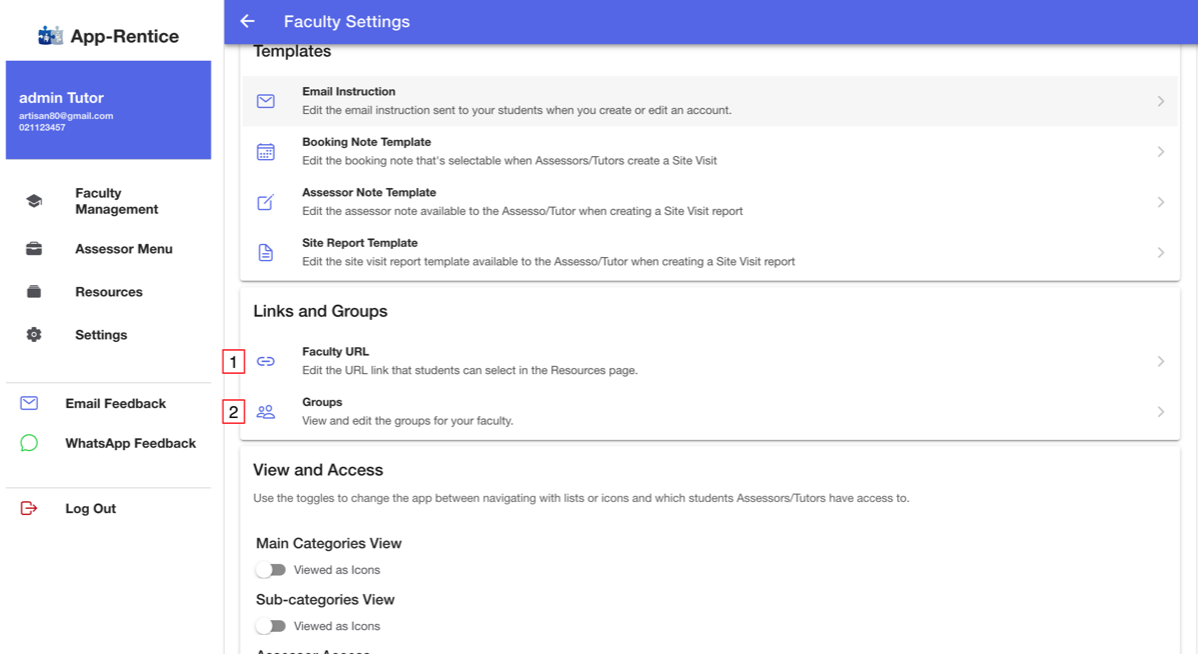
- Faculty URL
- Groups
Edit faculty URL
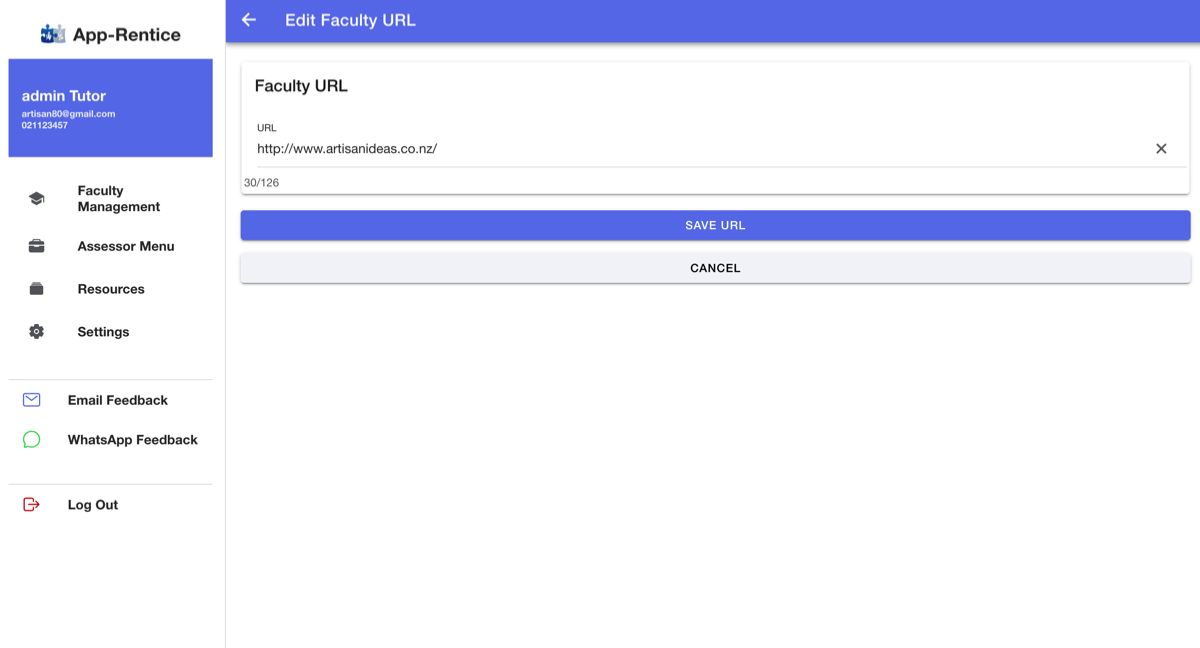
- Edit the url or copy and paste it in
- 126 character limit
- Select Save to update the app, or
- or Cancel to exit editor
Groups
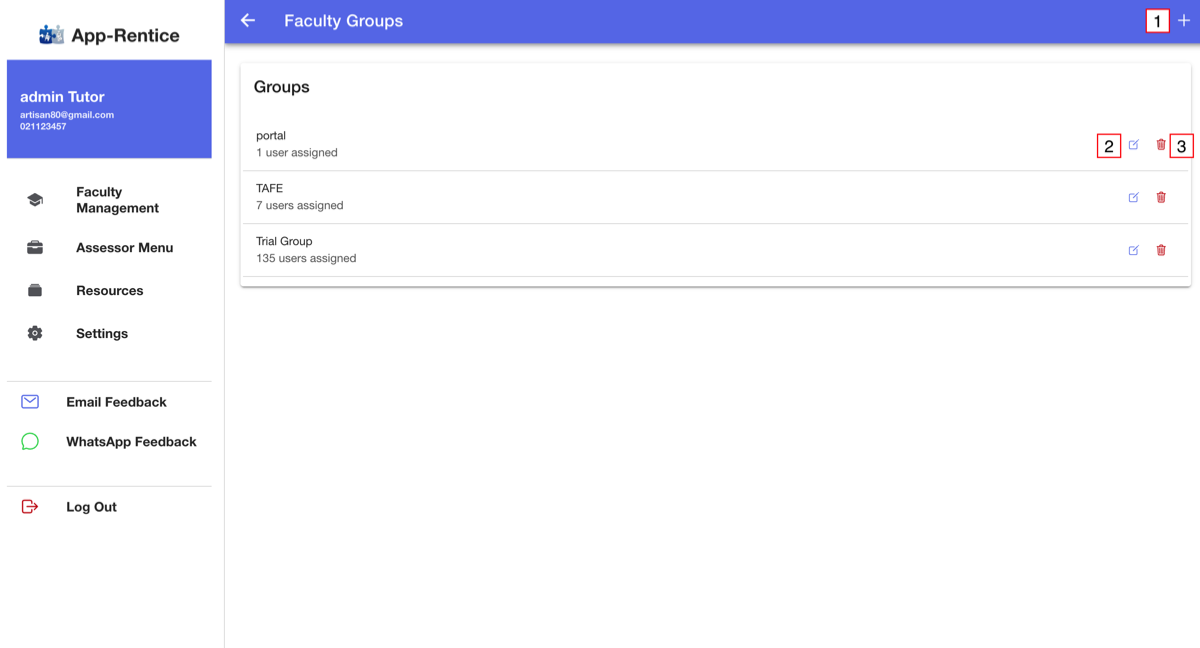
Groups are listed with the number of accounts assigned to that group.
- Add new Group
- Edit Group - will open a popup to edit the group name
- Delete Group - a warning will be displayed if users are still allocated to the group
View and Access
Provide a link to a webpage/site of your choosing and group your users
App-Rentice provides resource links which are assigned to each sub-category (editable in the menu content section) but also a single URL that is displayed at the top of the Resources Page.
Create and edit groups so students can be filtered by groups, having Assessors/Tutors in groups also allows for sharing access to limited member (see View ad Access)
View and Access sub-menu
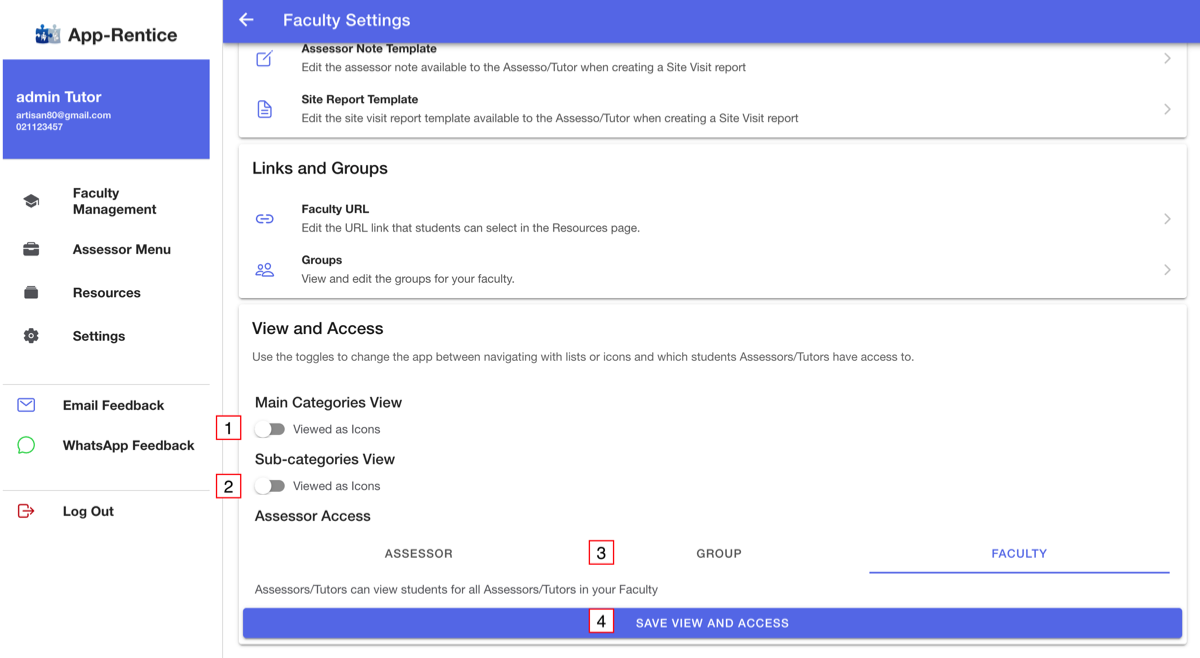
- App displays Main categories as a list or as icons (icon images can be uploaded in the Menu Content Section)
- App displays Subcategories as a list or as icons (icon images can be uploaded in the Menu Content Section)
- Set which students Assessors/Tutors can access - just their own, those in their Assessor Group, or all students
- Select Save View and Access to update the app